

Why GPUs? What’s MIG? What’s the difference between PCIe and SXM? This is the guide I wish I had when I started managing H100 clusters.
If you’re a DevOps or platform engineer, you’ve probably noticed something: AI infrastructure is everywhere now. And suddenly, you’re expected to understand GPUs, tensor cores, MIG partitioning, and a dozen other concepts that weren’t in your job description two years ago.
I’ve spent the last year managing H100 GPU clusters in production. This post is everything I’ve learned — from absolute basics to production gotchas — written for engineers like us who came from the Kubernetes/cloud-native world.
Let’s start from first principles.
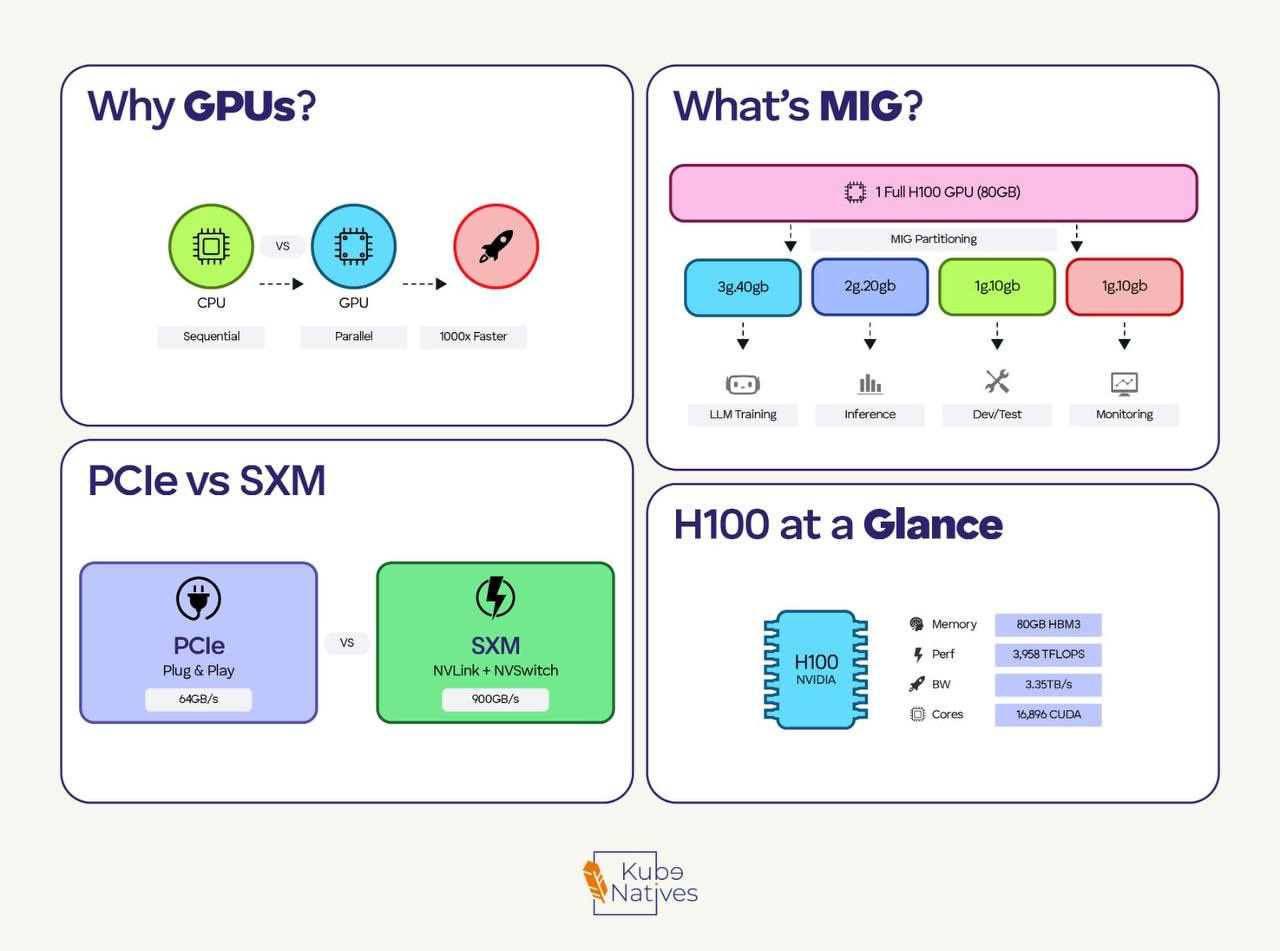
Why GPUs? (The 30-Second Version)
CPUs have a few powerful cores (8-64) optimized for complex, sequential tasks.
GPUs have thousands of smaller cores optimized to perform the same operation on large amounts of data simultaneously.
Neural networks are fundamentally matrix multiplication — millions of operations like:
[weight matrix] × [input data] + [bias] = [output]
Each operation is independent. A GPU can do thousands simultaneously. A CPU does them one by one.
Real numbers: Training GPT-3 on CPUs would take ~355 years. On GPUs? ~34 days.
That’s why every AI company is fighting over GPU allocations right now.
The GPU Landscape: What You’ll Actually Encounter
If you’re working in AI infrastructure, you’ll see these NVIDIA GPUs:
T4 — 16GB, 70W. Small inference, dev/test, budget-friendly
A100 — 40/80GB, 400W. Training, large inference — the 2021–2023 workhorse
H100 — 80GB, 700W. Current gold standard, 3x faster than A100 for LLMs
B200 — 192GB, 1000W. Next gen, shipping now
The jump from A100 to H100 isn’t just more memory — it’s architectural.
H100 has a “Transformer Engine” that automatically switches between FP8 and FP16 precision, which is why it’s so much faster for LLM workloads.
PCIe vs SXM: Why Form Factor Matters
This confused me at first. Same GPU chip, but two different products?
PCIe GPUs:
Plug into standard server PCIe slots
Air cooled (fans)
Lower power (H100 PCIe: 350W)
GPUs communicate via PCIe — slower
SXM GPUs:
Proprietary socket, requires special baseboard
Liquid or advanced cooling
Higher power (H100 SXM: 700W)
GPUs connect via NVLink — much faster
The rule: PCIe for inference and single-GPU work. SXM for multi-GPU training where GPUs need to talk to each other constantly.
If you’re running a training cluster, you want SXM. If you’re serving inference on individual GPUs, PCIe is fine and easier to deploy.
MIG: Slicing GPUs Like Kubernetes Slices Nodes
This is where it gets interesting for platform engineers.
The problem: Not every workload needs 80GB of GPU memory. A small inference job might need 10GB. Without partitioning, you’re wasting 70GB — or dealing with messy GPU sharing that causes contention.
The solution: MIG (Multi-Instance GPU) lets you partition a single GPU into isolated instances. Each instance gets dedicated compute, memory, and bandwidth.
Think of it like going from “one pod per node” to “multiple pods per node with resource limits” — but for GPUs.
H100 MIG options:
Full GPU: 80GB
├── 2x 3g.40gb (2 instances, 40GB each)
├── 3x 2g.20gb (3 instances, ~20GB each)
├── 7x 1g.10gb (7 instances, ~10GB each)
└── Mixed combinations
Quick MIG commands:
# Enable MIG mode
sudo nvidia-smi -i 0 -mig 1

# Create two 40GB instances
sudo nvidia-smi mig -i 0 -cgi 3g.40gb,3g.40gb

# Create compute instances (required)
sudo nvidia-smi mig -i 0 -gi 0 -cci
sudo nvidia-smi mig -i 0 -gi 1 -cci

# Check what you have
nvidia-smi mig -lgi
In Kubernetes, MIG instances appear as separate resources:
resources:
  limits:
    nvidia.com/mig-3g.40gb: 1
When to use MIG:
✅ Multi-tenant inference serving
✅ Dev/test environments
✅ Maximizing utilization on expensive GPUs
❌ Training (usually needs full GPU)
❌ Large models that need full memory
❌ Multi-GPU workloads (MIG disables NVLink)
TPU vs GPU: The Google Alternative
You’ll hear about TPUs. Here’s the quick comparison:
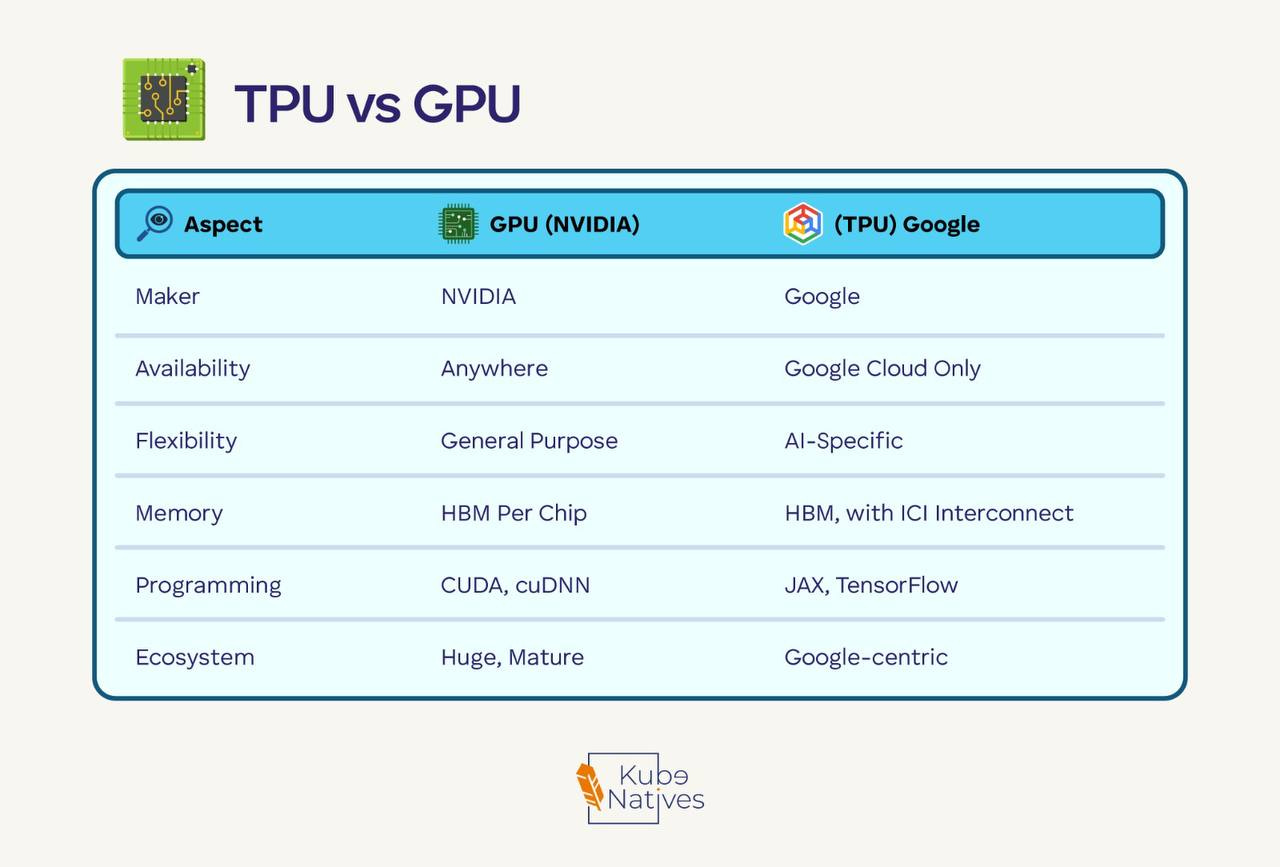
Choose TPU if: You’re all-in on Google Cloud and using JAX/TensorFlow.
Choose GPU if: Everything else — especially if you use PyTorch or need multi-cloud flexibility.
Most of the industry runs on NVIDIA GPUs. TPUs are excellent but lock you into Google’s ecosystem.
The Memory Problem
Here’s something that surprised me coming from CPU-land: GPU memory is almost always the bottleneck.
For training a 7B parameter model (that’s “small” now):
Component Memory Model weights (FP16) 14 GB Adam optimizer states 28 GB Gradients 14 GB Activations Variable, can be huge Total Easily 80GB+
A “small” 7B model can max out an 80GB H100 during training.
For inference, the KV cache grows with sequence length. Long context = more memory.
This is why you’ll hear about techniques like:
Quantization: INT8/INT4 instead of FP16 (smaller but some accuracy loss)
Gradient checkpointing: Trade compute for memory
Offloading: Spill to CPU RAM when needed
Precision Formats: Why FP8 Matters
Quick reference:
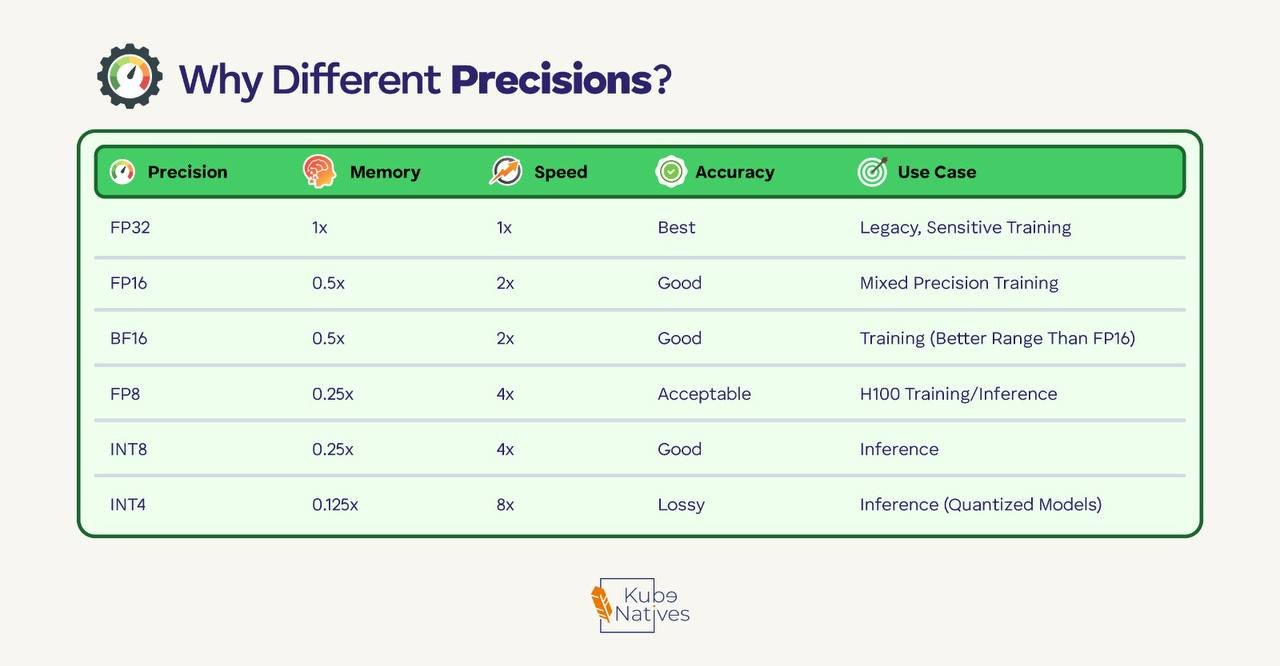
The H100’s “Transformer Engine” automatically switches between FP8 and FP16 — using lower precision where safe, higher where it matters. This is a big part of why H100 is faster than A100 for transformers.
Production Monitoring: What to Watch
These are the metrics I watch on our GPU clusters:
GPU Utilization — Healthy: 80–100% during training. Problem: low usage means a bottleneck elsewhere
Memory Usage — Healthy: depends on workload. Problem: OOM errors mean you need optimization
Temperature — Healthy: under 80°C. Problem: above 83°C means thermal throttling
ECC Errors — Healthy: 0. Problem: any count signals a potential hardware issue
The commands you’ll use daily:
# Basic status
nvidia-smi

# Continuous monitoring
nvidia-smi dmon

# Specific metrics as CSV (good for piping to monitoring)
nvidia-smi --query-gpu=temperature.gpu,utilization.gpu,memory.used --format=csv

# For production: DCGM
dcgmi diag -r 3  # Run diagnostics
Common production issues I’ve hit:
Memory fragmentation — OOM with “free” memory showing. Restart fixes it.
PCIe bottleneck — Low GPU utilization with high CPU wait. Fix your data pipeline.
Thermal throttling — Performance drops mysteriously. Check cooling and airflow.
NVLink errors — Multi-GPU training crawls. Check
nvidia-smi nvlink -s.
The 5-Minute Summary
If you remember nothing else:
GPUs are fast because they do thousands of matrix operations in parallel
H100 > A100 > T4 — know which you need for your workload
PCIe for inference, SXM for training — form factor matters
MIG lets you slice GPUs — great for multi-tenant inference
Memory is the bottleneck — most optimization is about fitting in GPU RAM
Monitor temperature and ECC errors — hardware issues are real
What’s Next?
This is part of a series I’m writing on AI infrastructure for DevOps engineers. Coming up:
Model serving architectures (vLLM, TensorRT, Triton)
Kubernetes GPU scheduling deep dive
Building a cost-efficient inference platform
If you’re making the move from traditional DevOps into AI infrastructure, you’re not alone. The skills transfer more than you’d think — it’s still distributed systems, just with different hardware constraints.
Hit reply and tell me: what GPU infrastructure topic should I cover next?
If you found this useful, share it with a fellow engineer who’s staring at their first nvidia-smi output wondering what it all means.