
Resource Requests and Limits for GPU Workloads
Get requests wrong and your pods are Pending. Get limits wrong and they OOM. Here is how to size them correctly for GPU inference.

Every Kubernetes pod spec has two resource fields: requests and limits. For CPU and memory, the difference is well understood. For GPU workloads, most teams get them wrong.
The result: pods stuck in Pending because requests are too high. Or pods crashing with OOMKilled because memory limits are too low. Or GPU nodes running at 30% utilization because every pod over-requests resources.
This article covers how to set requests and limits correctly for inference workloads, training jobs, and mixed GPU environments.
Requests vs Limits: The Basics
Requests are what the scheduler uses to find a node. The scheduler looks at every node and asks: “Does this node have enough unrequested resources to fit this pod?” If no node has enough, the pod stays Pending.
Limits are the ceiling. If the pod tries to use more than the limit, Kubernetes enforces it. For memory, the pod is OOMKilled. For CPU, the pod is throttled.
resources:
  requests:
    cpu: "4"
    memory: 32Gi
    nvidia.com/gpu: "1"
  limits:
    memory: 48Gi
    nvidia.com/gpu: "1"
Critical difference for GPUs: GPU requests and limits must be equal. You cannot request 0.5 GPUs. You cannot set a limit of 2 GPUs with a request of 1. The NVIDIA device plugin requires requests = limits for nvidia.com/gpu. Always.
Why CPU Limits Are Dangerous for Inference
Do not set CPU limits on vLLM or Triton pods. This is counterintuitive but important.
CPU limits cause throttling. When a pod hits its CPU limit, Kubernetes throttles it. The pod is not killed. It is slowed down. For inference workloads, this means slower tokenization, slower request handling, and higher TTFT.
vLLM uses CPU for tokenization, request scheduling, and output buffering. These are bursty workloads. During model loading, CPU usage spikes. During inference, it drops. A static CPU limit penalizes the spikes.
# WRONG: CPU limit causes throttling during tokenization spikes
resources:
  requests:
    cpu: "4"
    memory: 32Gi
    nvidia.com/gpu: "1"
  limits:
    cpu: "8"        # Remove this
    memory: 48Gi
    nvidia.com/gpu: "1"

# RIGHT: CPU request only, no limit
resources:
  requests:
    cpu: "4"
    memory: 32Gi
    nvidia.com/gpu: "1"
  limits:
    memory: 48Gi
    nvidia.com/gpu: "1"
    # No CPU limit
Set CPU requests (for scheduling) but leave CPU limits unset. The pod can burst above its request when the node has spare CPU. No throttling. No latency spikes.
Memory Sizing for Inference Pods
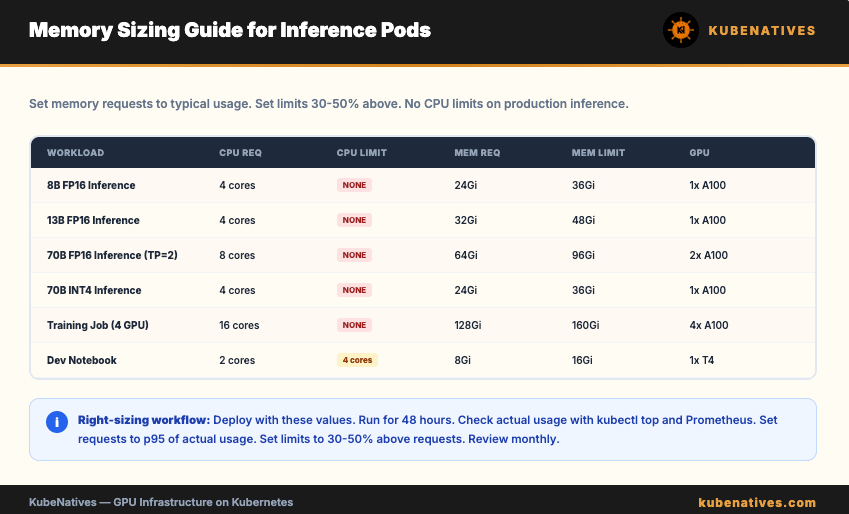
Memory limits are essential. Without them, a memory leak crashes the node instead of just the pod.
The memory a vLLM pod needs:
Model loading buffer:     ~1x model size (temporary, during download/load)
Tokenizer:                200MB to 2GB (depends on vocab size)
Request handling:          ~100MB per concurrent request
vLLM engine overhead:     1-4GB
Python runtime:           500MB to 1GB
Sizing guide:
Model Size     Memory Request     Memory Limit     Headroom
8B FP16        16Gi               24Gi             50%
13B FP16       24Gi               36Gi             50%
70B FP16       48Gi               64Gi             33%
70B INT4       24Gi               36Gi             50%
The request is what the pod typically uses. The limit provides headroom for spikes during model loading, large batch requests, and garbage collection.
Set the limit at 30 to 50% above the request. This gives the pod room to breathe without letting a runaway process consume the entire node.
GPU Resource Rules
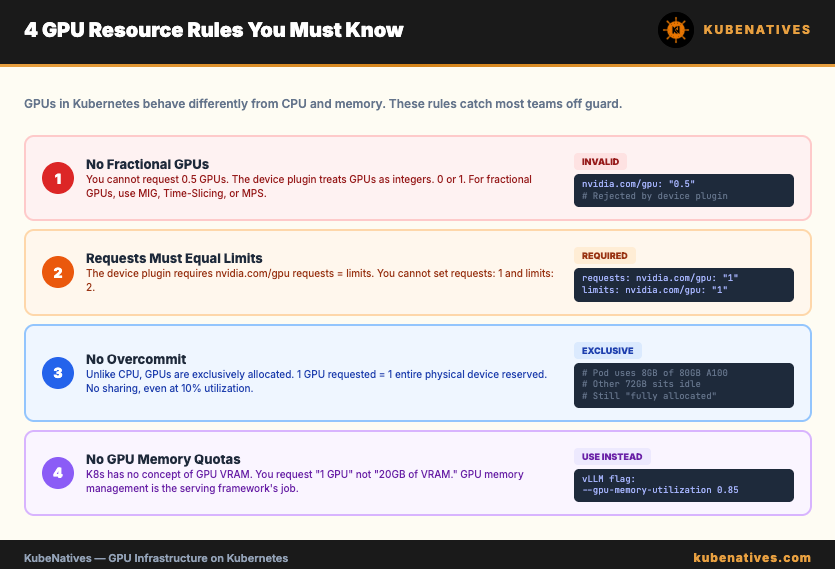
GPUs in Kubernetes have unique constraints that CPU and memory do not:
No fractional GPUs. You cannot request 0.5 GPUs. The device plugin treats GPUs as integers. 0 or 1. If you need fractional GPUs, use MIG, Time-Slicing, or MPS.
Requests must equal limits. The NVIDIA device plugin requires nvidia.com/gpu requests and limits to be identical. Setting requests: 1 and limits: 2 causes a validation error.
No overcommit. Unlike CPU (where you can request 1 core and burst to 4), GPUs are exclusively allocated. If you request 1 GPU, that entire physical GPU is reserved for your pod. No other pod can use it, even if your pod only uses 10% of the GPU.
No resource quotas on GPU memory. Kubernetes has no concept of GPU memory. You cannot request “20GB of GPU VRAM.” You request 1 GPU and get the entire device (40GB, 80GB, whatever the hardware has). GPU memory management is the serving framework’s job (vLLM’s gpu-memory-utilization flag).
Common Patterns
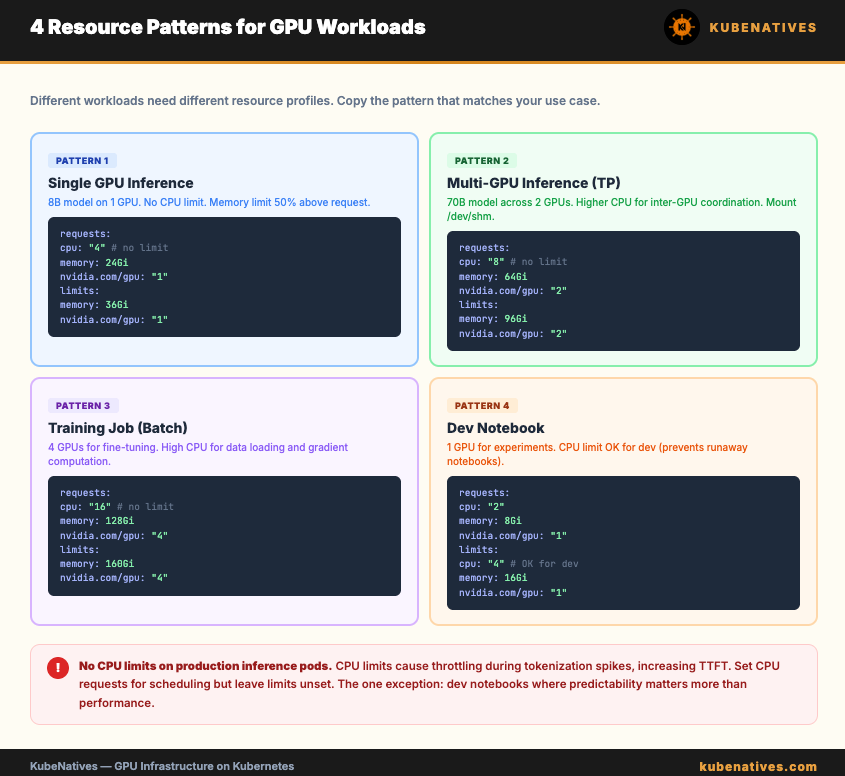
Pattern 1: Single GPU inference pod
resources:
  requests:
    cpu: "4"
    memory: 24Gi
    nvidia.com/gpu: "1"
  limits:
    memory: 36Gi
    nvidia.com/gpu: "1"
For an 8B model on a single GPU. No CPU limit. Memory limit 50% above request.
Pattern 2: Multi-GPU inference with tensor parallelism
resources:
  requests:
    cpu: "8"
    memory: 64Gi
    nvidia.com/gpu: "2"
  limits:
    memory: 96Gi
    nvidia.com/gpu: "2"
For a 70B model across 2 GPUs. Higher CPU request because tensor parallelism increases CPU usage for inter-GPU coordination. /dev/shm must also be mounted (16Gi minimum).
Pattern 3: Training job (batch)
resources:
  requests:
    cpu: "16"
    memory: 128Gi
    nvidia.com/gpu: "4"
  limits:
    memory: 160Gi
    nvidia.com/gpu: "4"
Training is more CPU-intensive than inference. Data loading, gradient computation, and checkpointing all use CPU. Higher CPU request is appropriate. Still no CPU limit.
Pattern 4: Jupyter notebook (development)
resources:
  requests:
    cpu: "2"
    memory: 8Gi
    nvidia.com/gpu: "1"
  limits:
    cpu: "4"       # OK for dev: predictable, non-production
    memory: 16Gi
    nvidia.com/gpu: "1"
For development workloads, CPU limits are acceptable. Notebooks are interactive and predictable. The limit prevents a runaway notebook from consuming an entire node. This is the one exception to the “no CPU limits” rule.
Monitoring Resource Usage
Set requests based on actual usage, not guesses. Monitor your pods and adjust.
# Check actual CPU and memory usage
kubectl top pod -n inference

# Check GPU utilization and memory
kubectl exec -it <vllm-pod> -- nvidia-smi

# Check resource requests vs actual usage over time
# Use Prometheus queries:
# container_cpu_usage_seconds_total
# container_memory_usage_bytes
If your pod consistently uses 2 CPU cores but requests 8, you are wasting 6 cores of scheduling capacity. Other pods cannot use those 6 cores even though they are idle.
If your pod’s memory usage is consistently at 95% of the limit, increase the limit. You are one spike away from OOMKilled.
The Right-Sizing Workflow
Start with the sizing guide above for initial deployment.
Run the workload for 48 hours with production traffic.
Check actual usage with kubectl top and Prometheus.
Set requests to the p95 of actual usage (covers normal spikes).
Set limits to 30 to 50% above requests (covers unusual spikes).
Review monthly and adjust as traffic patterns change.
The Bottom Line
For GPU inference pods: set CPU requests but not CPU limits. Set memory requests and limits with 30 to 50% headroom. Set GPU requests equal to limits (required by the device plugin).
The most common mistake is over-requesting CPU and memory. This wastes scheduling capacity and prevents other pods from running on the same node. The second most common mistake is not setting memory limits, which lets a memory leak crash the entire node.
Right-size based on actual usage. Monitor. Adjust. Repeat.
Next week: GPU Monitoring with DCGM Exporter: The Metrics That Matter.
If you are building GPU infrastructure on Kubernetes, I cover resource management, model serving, and production operations every week. Subscribe at kubenatives.com.
Thank you for your articles on gpu workloads with kubernetes. Isn't that having cpu limits on multi tenant cluster is best practice for gpu work loads also?